This email deliverability checklist pulls together what Gmail, Yahoo and Microsoft now expect from anyone sending marketing email at volume. It separates the targets you should aim for from the limits where mailbox providers start filtering or rejecting mail, a difference most vendor guides blur. Work through the 25 steps in order and you will have authentication, list hygiene, unsubscribe handling and monitoring covered before your next campaign goes out.
Table of Contents
What Gmail, Yahoo and Microsoft Require From Bulk Senders
Gmail and Yahoo started enforcing their bulk sender rules in February 2024, with Yahoo’s one-click unsubscribe requirement following in June 2024. Microsoft added similar rules for Outlook.com, Hotmail.com and Live.com addresses from May 5, 2025. Together these providers handle a large share of consumer inboxes, so their rules now set the baseline for everyone.
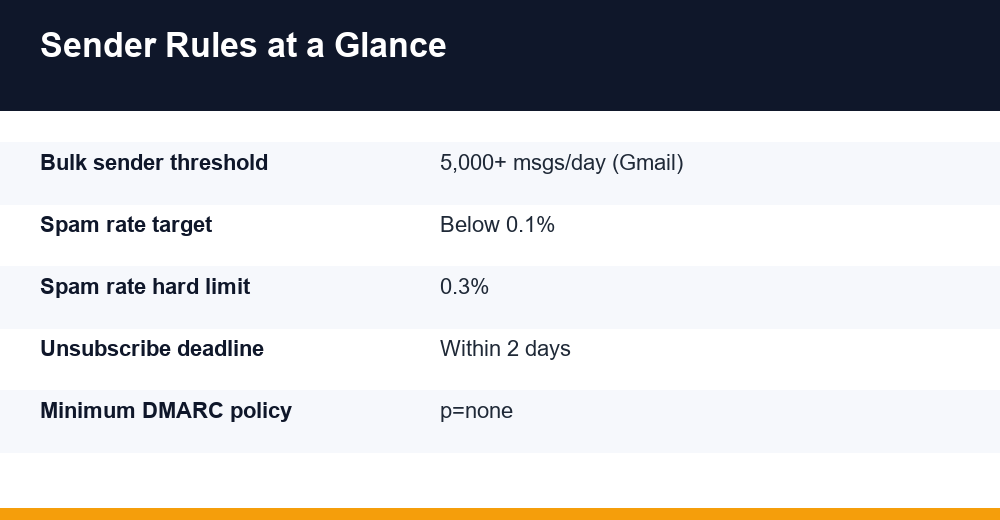
Google defines a bulk sender as anyone who sends close to 5,000 or more messages a day to personal Gmail accounts. Once a domain crosses that line, it keeps bulk status. Microsoft uses a 5,000-per-day figure for its consumer domains. Yahoo applies its requirements to bulk senders but does not publish a numeric threshold, so the 5,000 figure in many Yahoo guides comes from vendors, not Yahoo.
Google lists its full requirements on the official Gmail email sender guidelines page. The comparison below summarizes what each provider asks of high-volume senders.
| Requirement | Gmail | Yahoo | Microsoft (Outlook.com) |
|---|---|---|---|
| SPF | Required (bulk) | Required | Required |
| DKIM | Required (bulk) | Required | Required |
| DMARC | Required, p=none minimum | Required, p=none minimum | Required, p=none minimum |
| Domain alignment | From aligned with SPF or DKIM | Aligned with SPF or DKIM | Aligned with SPF or DKIM |
| One-click unsubscribe | Required for marketing mail (RFC 8058) | Required; RFC 8058 POST preferred, mailto accepted | Working unsubscribe recommended |
| Unsubscribe processing | Within 2 days | Within 2 days | Promptly (best practice) |
| Spam complaint ceiling | 0.3% (target under 0.1%) | 0.3% | No published figure |
| Consequence of non-compliance | Spam folder, temporary or permanent rejection | Filtering or blocking | Rejection (error 550 5.7.515) |
Some rules apply to all senders, whatever the volume. Gmail expects SPF or DKIM, valid forward and reverse DNS (PTR) records, TLS for transmission and messages formatted to RFC 5322. HTML must be valid, and the From header should contain a single address. Yahoo also asks for meaningful, non-generic PTR records on every sending IP.
Google describes its enforcement as gradual and progressive. In practice, non-compliant traffic first sees more mail routed to spam and temporary errors, then outright rejections. Microsoft announced Junk-folder routing at first, then updated its plan before launch so that non-compliant high-volume mail is rejected with a 550 5.7.515 error. Plan for rejection rather than hoping for a softer outcome.
What Is a Good Spam Complaint Rate?
Google asks senders to keep the user-reported spam rate below 0.1% and never let it reach 0.3%. Those two numbers do different jobs: 0.1% is the target, and 0.3% is where enforcement starts. Yahoo also treats 0.3% as its ceiling, and several deliverability teams advise aiming well below it there too.
If you go over 0.3% in Gmail, you can no longer get mitigation support from Google. You become eligible again only after your spam rate stays below 0.3% for seven consecutive days. Mitigation is also unavailable while you fail the authentication or one-click unsubscribe requirements. So a single bad campaign can hurt inbox placement for more than a week.
How the rate is calculated
Gmail calculates the spam rate daily, based on mail delivered to the inbox that recipients then reported as spam. Yahoo’s rate is also measured against inbox-delivered mail, not total sends. If much of your mail already lands in the spam folder, the reported rate can look healthier than your real situation.
| Spam rate | Status | What to do |
|---|---|---|
| Under 0.1% | Healthy | Keep current practices and keep monitoring |
| 0.1% to 0.3% | Warning zone | Cut unengaged segments; check acquisition sources |
| 0.3% and above | Enforcement | Pause sends to cold segments until the rate recovers |
Yahoo offers a Complaint Feedback Loop (CFL) that reports complaints at the message level. Google Postmaster Tools shows Gmail’s aggregate rate. Check both if a large part of your list uses Yahoo or AOL addresses.
How to Set Up SPF, DKIM and DMARC
All three records live in DNS on your sending domain, and your email service provider (ESP) supplies most of the values. You set each one up once, then revisit it only when you add or change a sending service.
SPF: authorize your sending servers
SPF is a single TXT record listing which servers may send mail for your domain, for example v=spf1 include:_spf.example-esp.com ~all. Keep exactly one SPF record per domain and stay within the limit of 10 DNS lookups, or SPF returns an error. Remove includes for services you no longer use.
DKIM: sign every message
DKIM adds a cryptographic signature that receivers verify against a public key in your DNS. Your ESP generates the key pair and gives you a CNAME or TXT record to publish. Use 2048-bit keys where your DNS host supports them. The detail that matters most is signing with your own domain, not the ESP’s shared domain, so the signature aligns with your From address.
DMARC: tie it together
DMARC tells receivers what to do when a message fails alignment and where to send reports. A starting record looks like v=DMARC1; p=none; rua=mailto:dmarc@yourdomain.com. All three providers accept p=none as the minimum, but treat it as a monitoring stage, not the final setup.
- Publish SPF and DKIM, then confirm both pass in the headers of a test message.
- Publish DMARC at p=none with a reporting address.
- Read aggregate reports for two to four weeks and fix any legitimate source that fails.
- Move to p=quarantine, then p=reject, once all legitimate mail passes.
The Complete Email Deliverability Checklist: 25 Steps
Here is the full email deliverability checklist, grouped by area. The first eight items are the ones mailbox providers can check automatically. The rest decide whether your mail lands in the inbox, the promotions tab or the spam folder.
Authentication and infrastructure
- Step 1: Publish one valid SPF record and keep it within 10 DNS lookups.
- Step 2: Sign all mail with DKIM using your own domain.
- Step 3: Publish a DMARC record (p=none at minimum) with an rua reporting address.
- Step 4: Align the visible From domain with your SPF or DKIM domain, ideally both.
- Step 5: Confirm forward and reverse DNS (PTR) records match for every sending IP.
- Step 6: Send over TLS.
- Step 7: Use separate subdomains for marketing and transactional mail (for example news.yourdomain.com).
- Step 8: Never use a gmail.com, yahoo.com or outlook.com From address when sending through a third-party platform.
List quality and consent
- Step 9: Collect explicit opt-in; use confirmed opt-in for high-risk sources such as giveaways.
- Step 10: Never buy, rent or scrape lists.
- Step 11: Validate addresses at signup to block typos and disposable domains.
- Step 12: Remove hard bounces after the first bounce.
- Step 13: Suppress subscribers with no clicks or replies in 90 to 180 days, after a re-engagement attempt.
- Step 14: Set expectations at signup: content type and frequency.
- Step 15: Track the complaint rate of each acquisition source separately.
Unsubscribe and content
- Step 16: Add List-Unsubscribe and List-Unsubscribe-Post headers (RFC 8058) to all marketing mail.
- Step 17: Include a clearly visible unsubscribe link in the body.
- Step 18: Process every unsubscribe within two days.
- Step 19: Use a recognizable sender name and a monitored reply-to address.
- Step 20: Keep a sensible text-to-image balance, include a plain-text part and avoid public link shorteners.
Monitoring and sending behavior
- Step 21: Verify your domain in Google Postmaster Tools and check it weekly.
- Step 22: Join Yahoo’s Complaint Feedback Loop, and Microsoft SNDS if you send from dedicated IPs.
- Step 23: Keep the spam rate under 0.1%, with an internal alert well before 0.3%.
- Step 24: Send at a steady volume and avoid sudden spikes.
- Step 25: Read DMARC aggregate reports monthly and tighten your policy over time.
Steps 9 to 15 depend on how you grow the list in the first place. Our guide to building an email list the right way covers consent-first acquisition in more detail.
If you manage several brands or clients, run the email deliverability checklist separately for each sending domain. Authentication, reputation and complaint rates are tracked per domain, so one clean domain does not cover a neglected one.
Why Are My Emails Going to Spam?
When legitimate mail lands in spam, the cause is usually one of a handful of problems. Work through them in this order, because the early ones are the fastest to confirm.
- Authentication failure. Open a delivered message, view the original headers and look for spf=pass, dkim=pass and dmarc=pass. A forwarding service, a new tool or a CRM sending on your behalf is often the source that fails.
- Misalignment. SPF and DKIM can both pass while DMARC still fails, if they authenticate the ESP’s domain rather than yours.
- High complaint rate. One campaign to an old segment can push Gmail’s spam rate above 0.3%.
- Poor engagement. Mailbox providers weigh signals such as replies, deletes without reading and messages moved out of spam. Sending to people who ignore you trains filters against you.
- Volume spikes. Suddenly sending far more than usual, especially from a new domain or IP, triggers rate limiting and deferrals.
- Content and links. Links to domains with a poor reputation, URL shorteners and misleading subject lines can all be filtered.
Check the SMTP bounce codes your ESP logs. Gmail and Microsoft return specific codes for authentication and policy failures, such as Microsoft’s 550 5.7.515. Those codes are more reliable than guessing from open rates, which Apple Mail Privacy Protection and image proxying have made unreliable as a deliverability signal.
Seed-list and inbox placement tests can help, but treat them as a sample rather than the full picture. Real subscriber engagement and provider data from Postmaster Tools carry more weight.
Checking Sender Reputation in Google Postmaster Tools
Google Postmaster Tools is free and is the only official view of how Gmail treats your mail. To set it up, add your sending domain, verify ownership with a DNS TXT record and wait until you send enough daily volume to Gmail for data to appear. Low-volume senders often see empty dashboards.
Google retired the old interface in 2025, redirecting users to the new version from September 30, 2025. The new version centers on a Compliance status dashboard that checks your domain against the sender guidelines. The old domain and IP reputation ratings (High, Medium, Low, Bad) were removed and did not carry over, even though many older guides still tell you to watch them.
- Compliance status: shows which requirements you pass, such as SPF, DKIM, DMARC, From alignment, one-click unsubscribe and spam rate. It uses rolling data, so fixes take a few days to show.
- Spam rate: the daily user-reported spam rate. Compare it with your send dates to find the campaign behind a spike.
- Authentication and encryption: the share of traffic passing SPF, DKIM, DMARC and TLS.
- Delivery errors: rejected or temporarily failed messages and the reasons.
If a requirement shows as needing attention, fix it at the DNS or ESP level, then check again after several days instead of every day. Since there is no longer an official reputation score, combine the spam rate trend with your own bounce, deferral and engagement data to judge how Gmail sees you.
How to Warm Up a New Sending Domain
Google’s advice for new domains and IPs is simple: start with low volume to engaged recipients, then increase gradually while watching server responses, spam rate and delivery errors. No mailbox provider publishes an official warm-up schedule, so be wary of any vendor that claims one.
Your best warm-up audience is people who just asked to hear from you. A well-built welcome email sequence earns high opens and replies, and those positive signals help a new domain build a reputation fastest.
| Week | Approximate daily volume | Audience |
|---|---|---|
| 1 | 50 to 500 | Most engaged: clicked or replied in last 30 days |
| 2 | 500 to 2,000 | Engaged in last 60 days |
| 3 | 2,000 to 10,000 | Engaged in last 90 days |
| 4+ | Increase 25% to 50% per step | Wider active list; hold if deferrals appear |
The table above is an illustrative, approximate schedule, not a provider rule. Adjust it to your list size and how recipients respond. If you see temporary deferrals (4xx codes) or the spam rate rises, hold volume flat or step back until things stabilize.
Apply the same email deliverability checklist from the very first send. A new domain gets less tolerance than an established one, not more, and fixing authentication after a reputation problem takes far longer than getting it right before launch.
Where Vendor Guides Contradict Each Other
Compare five deliverability guides and you will find them disagreeing on several points. Here is what the official sources actually say.
- 0.1% vs 0.3%: Some guides call 0.1% the limit and others call 0.3% the target. Google treats 0.1% as the recommendation and 0.3% as the enforcement threshold.
- Mailto unsubscribe: Yahoo accepts mailto but prefers RFC 8058 POST. Gmail’s one-click requirement needs the List-Unsubscribe-Post header with an HTTPS URL. Implement HTTPS POST and you satisfy both.
- Yahoo’s 5,000 threshold: widely quoted, but not an official Yahoo number.
- Microsoft Junk vs reject: early announcements mentioned Junk-folder routing, while the updated plan describes rejection with error 550 5.7.515. Assume rejection.
- Postmaster reputation scores: guides that tell you to watch domain reputation are out of date, because Google removed it.
- DMARC p=none: it meets the requirement but does not stop spoofing. Treat it as the first step, not the finish line.
Deliverability has a direct effect on revenue. Every message filtered to spam is a send you paid for that nobody reads. To see how inbox placement feeds into returns, read our breakdown of email marketing ROI. Review this email deliverability checklist every quarter, and again each time you add a new sending tool.
Frequently Asked Questions
What are the Gmail and Yahoo bulk sender requirements?
Bulk senders must authenticate with SPF and DKIM, publish a DMARC record at p=none or stricter, and align the From domain with SPF or DKIM. Marketing mail needs one-click unsubscribe, with unsubscribes processed within two days. The spam complaint rate must stay below 0.3%. Gmail applies these rules to senders of about 5,000 or more daily messages to personal accounts.
What is a good spam complaint rate?
Aim to keep the user-reported spam rate below 0.1%, which is Google’s own recommendation. Gmail and Yahoo both treat 0.3% as the ceiling for bulk senders. If you exceed it in Gmail, you lose mitigation support until the rate stays below 0.3% for seven consecutive days. Both providers calculate the rate from inbox-delivered mail.
How do I check my sender reputation in Google Postmaster Tools?
Add your sending domain in Postmaster Tools and verify it with a DNS TXT record. Once you send enough daily volume to Gmail, check the Compliance status dashboard for SPF, DKIM, DMARC, alignment, unsubscribe and spam rate results. The old domain and IP reputation scores were removed in 2025, so track the spam rate trend and delivery errors instead.
How do I warm up a new sending domain?
Start with low daily volume sent only to your most engaged subscribers, such as recent signups, then raise volume gradually over several weeks. Watch for 4xx deferrals and a rising spam rate, and hold volume flat if either appears. No mailbox provider publishes an official schedule, so treat any fixed warm-up plan as an approximate guide only.